配置你的Paypal帐号
Paypal is available worldwide and very popular. It does not charge any subscription fees, and creating an account is very easy. Therefore, we strongly recommend that Odoo beginners use Paypal. It is like part of our seamless process, taking customers to the Paypal website to complete payment.
PayPal account
A business account is needed to get paid with Paypal. Create a Paypal Business Account or upgrade your Personal account to a Business account. Go to the Paypal settings and click on Upgrade to a Business account. Then follow the few configuration steps.
Settings in PayPal

Auto Return
[UNKNOWN NODE problematic]Auto Return* Automatically redirects customers back to Odoo after payment completion. Check *Auto Return* and enter your domain followed by ``/shop/confirmation`` as the *Return URL* (e.g., https://yourcompany.odoo.com/shop/confirmation).
This URL is required in PayPal, but is not actually used; Odoo transmits it with each transaction. If you manage multiple sales channels or Odoo databases, please do not worry.

Payment Data Transfer (PDT)
Payment Data Transfer 在支付确认处理完成后立即将其传送至 Odoo。若未启用此功能,Odoo 将无法完成销售流程。此设置也必须激活。保存时,系统会生成一个 身份令牌。稍后您需要在 Odoo 中输入该令牌。

Paypal account options
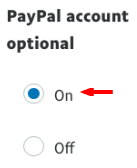
We advise you to not prompt customers to log in with a Paypal account when they get to pay. Let them pay with debit/credit cards as well, or you might lose some deals. Make sure this setting is turned on.
Instant Payment Notification (IPN)
PDT仅发送一次订单确认。因此,您的网站在发送时必须处于运行状态;否则将永远无法收到该消息。这就是我们建议额外激活即时付款通知(IPN)的原因。通过IPN,订单确认的投递几乎得到保证,因为IPN会重新发送确认,直到您的网站确认收到为止。
https://yourcompany.odoo.com/payment/paypal/ipn).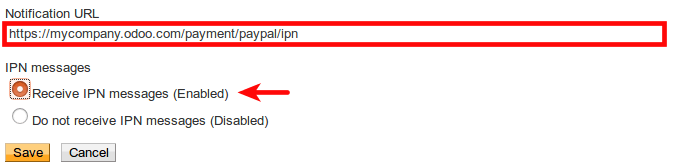
Payment Information Format
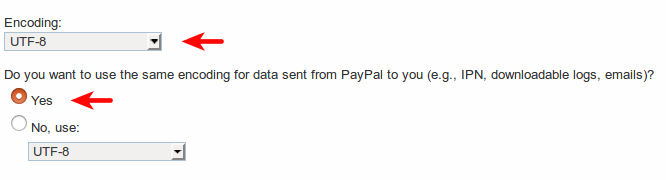
If you use accented characters (or any characters beyond the basic Latin set) for customer names, addresses, etc., you must configure the encoding format of the payment request that Odoo sends to PayPal.
Danger
If this setting is not configured, some transactions may fail without notification.
To perform this operation, open:
Then click More Options and set the two default encoding formats to UTF-8.

Your PayPal account is ready!
Tip
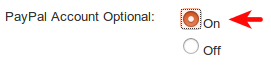
If you allow customers to pay without creating a PayPal account, you must enable the *PayPal Account Optional* setting.
Tip
For Encrypted Website Payments & EWP_SETTINGS error, please check the Paypal documentation.
Settings in Odoo
Enable
Activate *Paypal* from the configuration bar of sales, billing, and e-commerce applications or from the *Payment Acquirer* configuration menu.
Authorization
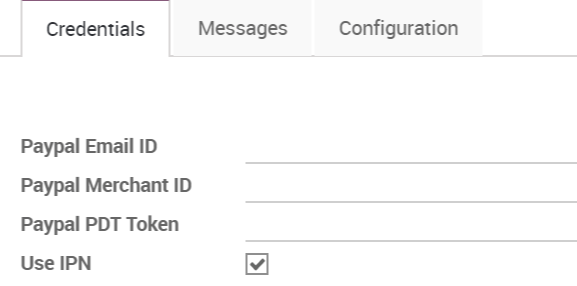
Odoo needs three types of PayPal credentials:
- Email ID is your login email address in Paypal.
- Merchant ID can be found in your PayPal account settings, under the menu: :menuselection:[UNKNOWN NODE problematic]Account Settings –> Business Information.
- As mentioned earlier, [UNKNOWN NODE problematic] the Paypal PDT token is *located* in the website payment *configuration*.
Transaction fees
You may charge customers an additional fee to offset the transaction fees PayPal charges you. After being redirected to PayPal, your customers will see an extra charge added to the order.
要启用此功能,请前往Odoo中Paypal配置的“配置”选项卡,并勾选添加额外费用。
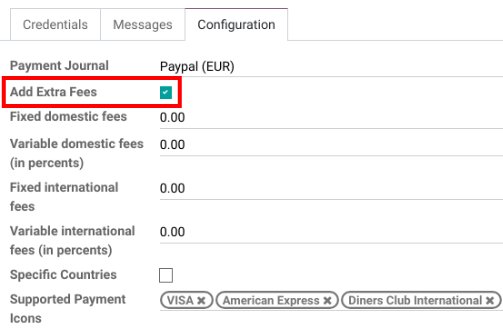
You can refer to Paypal Fees to set up fees.
Annotation
EU trade merchants <https://europa.eu/youreurope/citizens/consumers/shopping/pricing-payments/ index_en.htm>`_Additional fees are not allowed for using credit card payments.
Go live!
Your configuration is ready to roll. Make sure Production mode is on. Then publish the payment method by clicking the Published button right next to it.
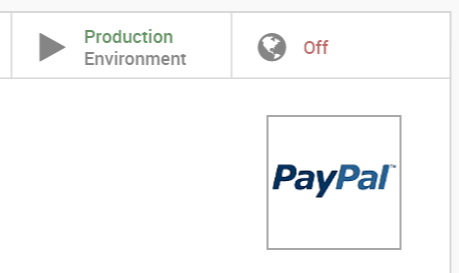
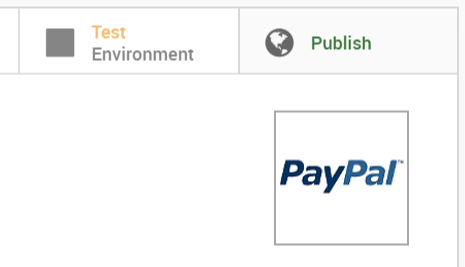
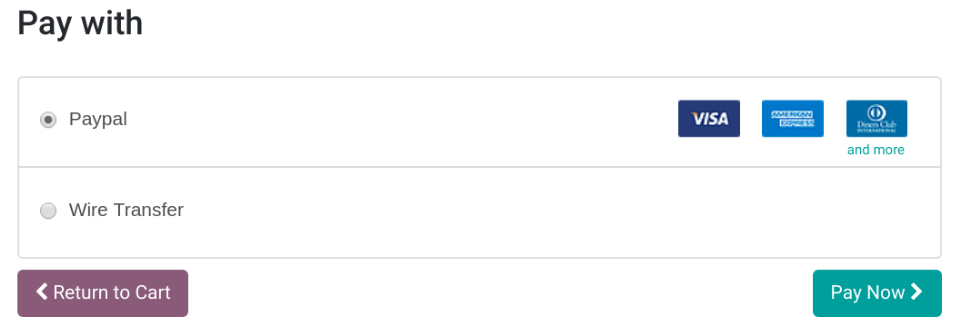
Paypal is now available in your payment form available in eCommerce, Sales and Invoicing apps. Customers are redirected to Paypal website when hitting Pay Now. They get back to a confirmation page in Odoo once the payment is processed.
Test environment
You can use a PayPal sandbox account to test the entire payment process in Odoo.
Log in to the PayPal Developer Site using your PayPal credentials https://developer.paypal.com/>`__.
This will create two sandbox accounts:
- A business account (to use as merchant, e.g. pp.merch01-facilitator@example.com).
- A default personal account (to use as shopper, e.g. pp.merch01-buyer@example.com).
使用商家账户登录PayPal沙盒,并按照相同的配置说明进行操作。在Odoo中输入您的沙盒凭据,并确保Paypal仍设置为测试环境。同时,请确保您的电子商务设置中未激活自动开票功能,以免在完成虚拟交易时生成发票。
Run a test transaction from Odoo using a sandbox personal account.
Commenting is not enabled on this course.