从odoo导出数据
When using a database, sometimes you must export data to different file types. Doing so can help you report on activities (even though each Odoo application provides precise and simple reporting tools).
With Odoo, you can export information from any field in a record. To do this, activate the list view on the items you want to export, click Actions, then click Export.

Very simply, this operation still has some special cases. In fact, when you click Export, a pop-up window appears with multiple options for exporting data:
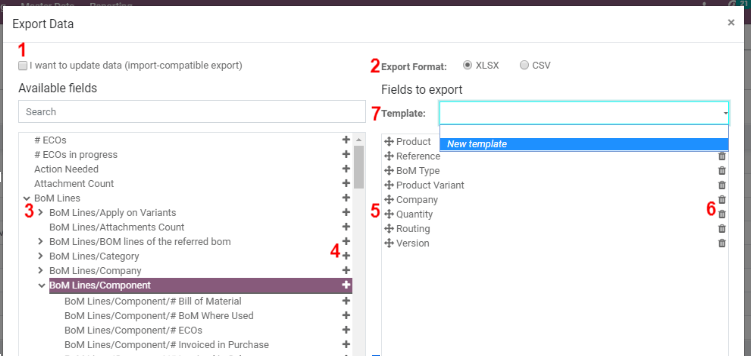
- Select the I want to update data option, and the system will only display fields that can be imported. This is useful if you want to update existing records. Essentially, it acts like a filter. Unchecking the box provides more field options, as it shows all fields, not just those that can be imported.
- When exporting, you can choose between two formats: .csv and .xls. With .csv, items are separated by commas, while .xls contains information about all worksheets in the file, such as content and formatting.
- These are the items you may want to export. Use the arrows to show more subfield options. Of course, you can use the search bar to find specific fields more easily. To use the search option more effectively, click all arrows to show all fields!
- Use the + button to add fields to the "To export" list.
- The "control key" next to the selected field allows you to move the field up or down to change the display order of the exported file.
- If you need to delete a field, you can click the trash can icon.
- For periodic reports, it may be useful to save export presets. Select all the required options, then click the template bar. Here, click New Template and give it a name. The next time you need to export the same list, simply select the relevant template.
Tip
Please remember the external identifier of the field. For example, Related Company equals parent_id. This allows you to export only the content you will import next.
Commenting is not enabled on this course.